
TRADESCORE LABS - STEP-BY-STEP GUIDE
Find out whether a Firefox add-on is breaking a webpage
Continue on my phone
Scan with your phone camera to open this guide. Sign in there if prompted.

PREVIEW BEFORE YOU REGISTER
What this guide helps you do
Save unfinished work and note which ordinary webpage fails and what happens. Use a familiar page without private information for this check. Troubleshoot Mode temporarily disables extensions, including any protection an extension supplies; avoid signing in or making purchases during the test.
Format: Step-by-step · Platform: Desktop browsers · Reading estimate: 2 minutes (task time varies)
Preview the first step
Before you start
Save unfinished work and note which ordinary webpage fails and what happens. Use a familiar page without private information for this check. Troubleshoot Mode temporarily disables extensions, including any protection an extension supplies; avoid signing in or making purchases during the test. Open the Firefox menu, then Help and Report > Troubleshoot Mode. Choose Restart. If your version uses a shorter Help label, look there for Troubleshoot Mode.
Prerequisites, sources and content date
Before starting: confirm the device or account is yours to manage, save your work and check the permissions in each step. Some guides include changes; stop if you lack approval.
Expected result: a documented check and next action, with verification steps in the full guide.
Content date: 2026-10-28. Review the vendor guidance for your version; this is not a guarantee of testing on your device.
Reference 1Free registration unlocks 5 script choices and 5 guide PDF choices every week. A paid pass unlocks unlimited scripts and guides during its active period.
Create my free account — no card neededTake this how-to guide with you
Free account: choose 5 branded guide PDFs each week. Paid pass: unlimited scripts and guides throughout your access period.
Sign in or create your free accountFollow one step at a time, then check the result. Menu names can vary by model. For a work or school device, ask your IT team before changing managed settings.
Save unfinished work and note which ordinary webpage fails and what happens. Use a familiar page without private information for this check. Troubleshoot Mode temporarily disables extensions, including any protection an extension supplies; avoid signing in or making purchases during the test.
Desktop browsers - Troubleshooting - English PDF
Try the first check
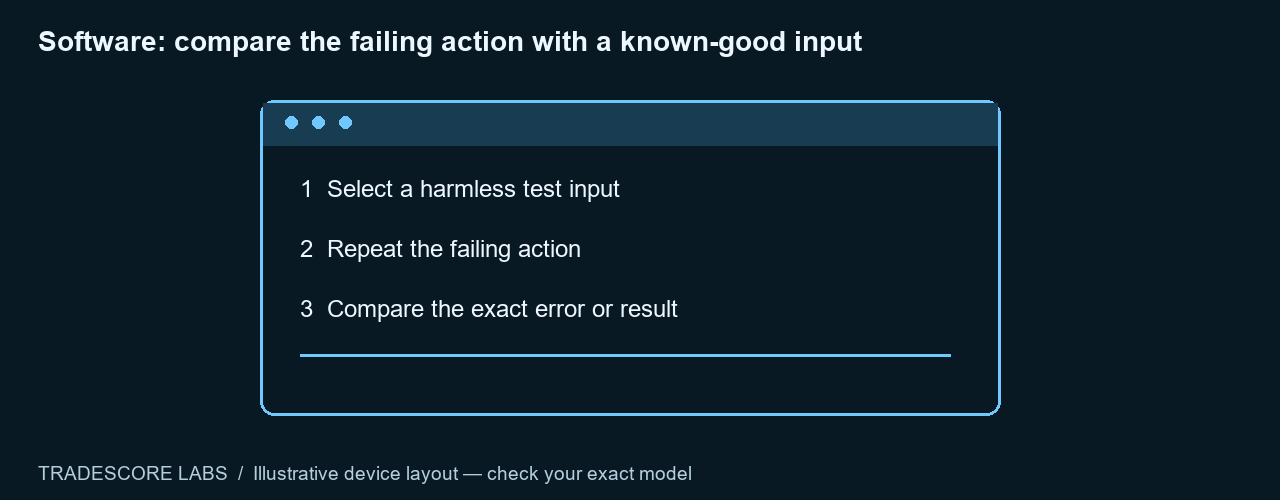
- Save unfinished work and note which ordinary webpage fails and what happens. Use a familiar page without private information for this check. Troubleshoot Mode temporarily disables extensions, including any protection an extension supplies; avoid signing in or making purchases during the test.
- Open the Firefox menu, then Help and Report > Troubleshoot Mode. Choose Restart. If your version uses a shorter Help label, look there for Troubleshoot Mode.
Continue with the full guide
Registration is required for free downloads. Create a free account for 5 guide PDFs and 5 scripts each week, or buy a one-off pass for full access and unlimited scripts and guides during your pass.
Sign in or create a free account Buy full access — compare passesExplain the words in this guide
- Operating system
- The main software that runs your device, such as Windows, macOS, Android or iOS.
- Update
- New software supplied by the maker to fix problems or add improvements. Use the device’s settings or the maker’s official app.
- Restart
- Turn the device off and on using its Restart option. Save your work first. Do not interrupt an update.
- Backup
- A separate copy of your files that you can use if the original is lost. Check you can open a copied file before deleting anything.
- Account
- Your personal sign-in for a service. Use your own account, or ask your workplace IT team which account belongs on a work device.
- Wi-Fi
- A wireless connection to a nearby network. Choose your own trusted network; an unfamiliar network name may belong to someone else.
- Factory reset
- A process that can erase files and settings. Do not choose this as an ordinary restart.
- Managed device
- A device controlled by your school or employer. Ask their IT team before changing its setup.
- Administrator
- A person allowed to change protected settings. If you are asked for an administrator password you do not have, ask the person or organisation that manages the device.
- Driver
- Software that helps your computer communicate with a device such as a printer or graphics card.
- Firmware
- Software built into a device. Use only the maker’s update for your exact model, and do not interrupt it.
- DNS
- The internet lookup system that turns website names into network addresses.
- Profile
- A collection of settings and data for an app or account. Deleting it can remove data, so do not use deletion as a first fix.
- Tenant
- An organisation’s account area in a cloud service. Only its authorised administrators should change its settings.
- Print queue
- The list of documents waiting to print.
Manufacturer and product references
Use the instructions for your exact model and software version. Illustrations show general layouts, not a specific model.