
TRADESCORE LABS - STEP-BY-STEP GUIDE
Read a busy webpage more comfortably in Chrome
PREVIEW BEFORE YOU REGISTER
What this guide helps you do
Clear steps to read a busy webpage more comfortably in Chrome. Check the result and know what to try next.
Format: Step-by-step · Platform: Chrome on computers · Reading estimate: 2 minutes (task time varies)
Preview the first step
Before you start
Open an article you want to read. Reading mode simplifies text; it may not reproduce forms or every part of a website.
Prerequisites, sources and content date
Before starting: confirm the device or account is yours to manage, save your work and check the permissions in each step. Some guides include changes; stop if you lack approval.
Expected result: a documented check and next action, with verification steps in the full guide.
Content date: 2026-10-19. Review the vendor guidance for your version; this is not a guarantee of testing on your device.
Reference 1Free registration unlocks 5 script choices and 5 guide PDF choices every week. A paid pass unlocks unlimited scripts and guides during its active period.
Create my free account — no card neededTake this how-to guide with you
Free account: choose 5 branded guide PDFs each week. Paid pass: unlimited scripts and guides throughout your access period.
Sign in or create your free accountFollow one step at a time, then check the result. Menu names can vary by model. For a work or school device, ask your IT team before changing managed settings.
Clear steps to read a busy webpage more comfortably in Chrome. Check the result and know what to try next.
Chrome on computers - Troubleshooting - English PDF
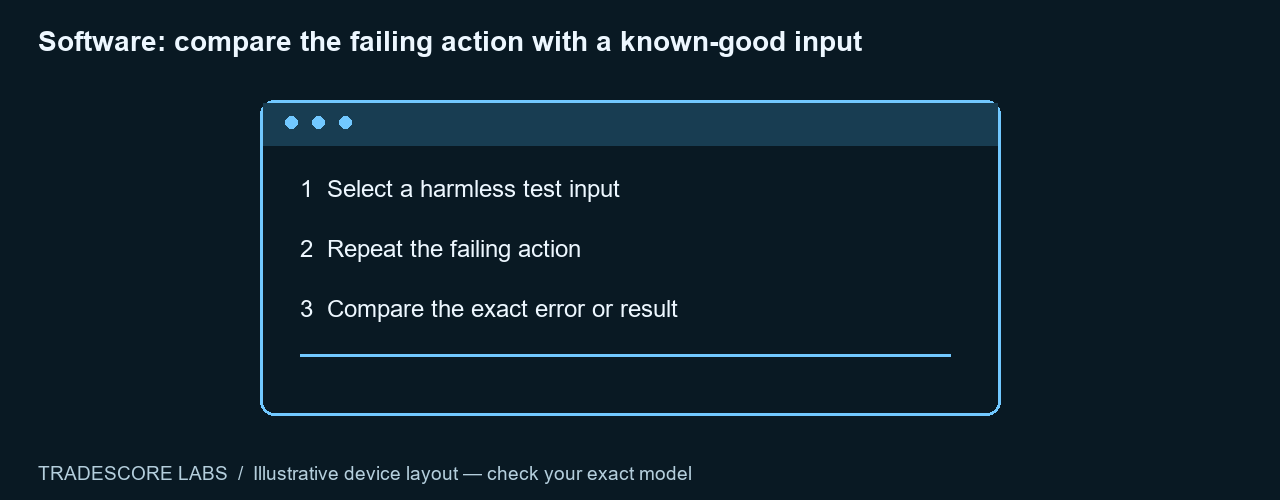
Try the first check
- Open an article you want to read.
- Reading mode simplifies text; it may not reproduce forms or every part of a website.
Continue with the full guide
Register for five guide PDF choices and five scripts each week, or use an active paid pass for unlimited access.
Sign in or create a free account Compare access passesExplain the words in this guide
- Operating system
- The main software that runs your device, such as Windows, macOS, Android or iOS.
- Update
- New software supplied by the maker to fix problems or add improvements. Use the device’s settings or the maker’s official app.
- Restart
- Turn the device off and on using its Restart option. Save your work first. Do not interrupt an update.
- Backup
- A separate copy of your files that you can use if the original is lost. Check you can open a copied file before deleting anything.
- Account
- Your personal sign-in for a service. Use your own account, or ask your workplace IT team which account belongs on a work device.
- Wi-Fi
- A wireless connection to a nearby network. Choose your own trusted network; an unfamiliar network name may belong to someone else.
- Factory reset
- A process that can erase files and settings. Do not choose this as an ordinary restart.
- Managed device
- A device controlled by your school or employer. Ask their IT team before changing its setup.
- Administrator
- A person allowed to change protected settings. If you are asked for an administrator password you do not have, ask the person or organisation that manages the device.
- Driver
- Software that helps your computer communicate with a device such as a printer or graphics card.
- Firmware
- Software built into a device. Use only the maker’s update for your exact model, and do not interrupt it.
- DNS
- The internet lookup system that turns website names into network addresses.
- Profile
- A collection of settings and data for an app or account. Deleting it can remove data, so do not use deletion as a first fix.
- Tenant
- An organisation’s account area in a cloud service. Only its authorised administrators should change its settings.
- Print queue
- The list of documents waiting to print.
Manufacturer and product references
Use the instructions for your exact model and software version. Illustrations show general layouts, not a specific model.