
TRADESCORE LABS - STEP-BY-STEP GUIDE
Phone photos look missing after migration
PREVIEW BEFORE YOU REGISTER
What this guide helps you do
Step-by-step help: Phone photos look missing after migration. Compare symptoms, make a supported change and verify the result.
Format: Step-by-step · Platform: iPhone, Galaxy and Pixel · Reading estimate: 2 minutes (task time varies)
Preview the first step
Identify the symptom
Write down the exact model, software version and what changed before the problem began. Confirm permission to troubleshoot and save any open work. Use the official reference below for model-specific menus; names vary between versions.
Prerequisites, sources and content date
Before starting: confirm the device or account is yours to manage, save your work and check the permissions in each step. Some guides include changes; stop if you lack approval.
Expected result: a documented check and next action, with verification steps in the full guide.
Content date: 2026-10-17. Review the vendor guidance for your version; this is not a guarantee of testing on your device.
Reference 1Free registration unlocks 5 script choices and 5 guide PDF choices every week. A paid pass unlocks unlimited scripts and guides during its active period.
Create my free account — no card neededTake this how-to guide with you
Free account: choose 5 branded guide PDFs each week. Paid pass: unlimited scripts and guides throughout your access period.
Sign in or create your free accountChoose the amount of explanation that suits you. You can change it at any time.
Your choice is saved only in this browser. No age or date of birth is collected. PDF downloads use the standard guide edition.
Go at your own pace
- Read the whole step before touching a setting. Keep this guide open on another screen if you can.
- On a computer, “click” means press the left mouse button once. On a phone or tablet, “tap” means touch the screen once.
- After each change, wait for it to finish and check what happened. If your screen looks different, stop and use the maker’s guide for your model.
- Keep passwords, recovery codes and payment details private. A child should ask a parent or trusted adult before creating accounts, buying anything or changing security settings.
Step-by-step help: Phone photos look missing after migration. Compare symptoms, make a supported change and verify the result.
iPhone, Galaxy and Pixel - Troubleshooting - English PDF
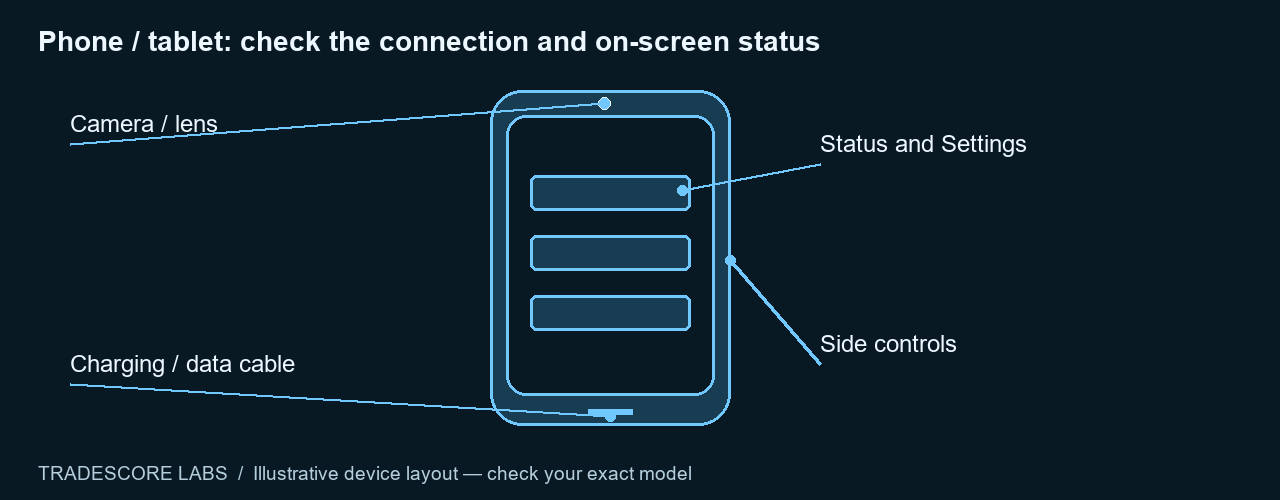
Try the first check
- Write down the exact model, software version and what changed before the problem began.
- Confirm permission to troubleshoot and save any open work.
Continue with the full guide
Register for five guide PDF choices and five scripts each week, or use an active paid pass for unlimited access.
Sign in or create a free account Compare access passesExplain the words in this guide
- Operating system
- The main software that runs your device, such as Windows, macOS, Android or iOS.
- Update
- New software supplied by the maker to fix problems or add improvements. Use the device’s settings or the maker’s official app.
- Restart
- Turn the device off and on using its Restart option. Save your work first. Do not interrupt an update.
- Backup
- A separate copy of your files that you can use if the original is lost. Check you can open a copied file before deleting anything.
- Account
- Your personal sign-in for a service. Use your own account, or ask your workplace IT team which account belongs on a work device.
- Wi-Fi
- A wireless connection to a nearby network. Choose your own trusted network; an unfamiliar network name may belong to someone else.
- Factory reset
- A process that can erase files and settings. Do not choose this as an ordinary restart.
- Managed device
- A device controlled by your school or employer. Ask their IT team before changing its setup.
Manufacturer and product references
Use the instructions for your exact model and software version. Illustrations show general layouts, not a specific model.